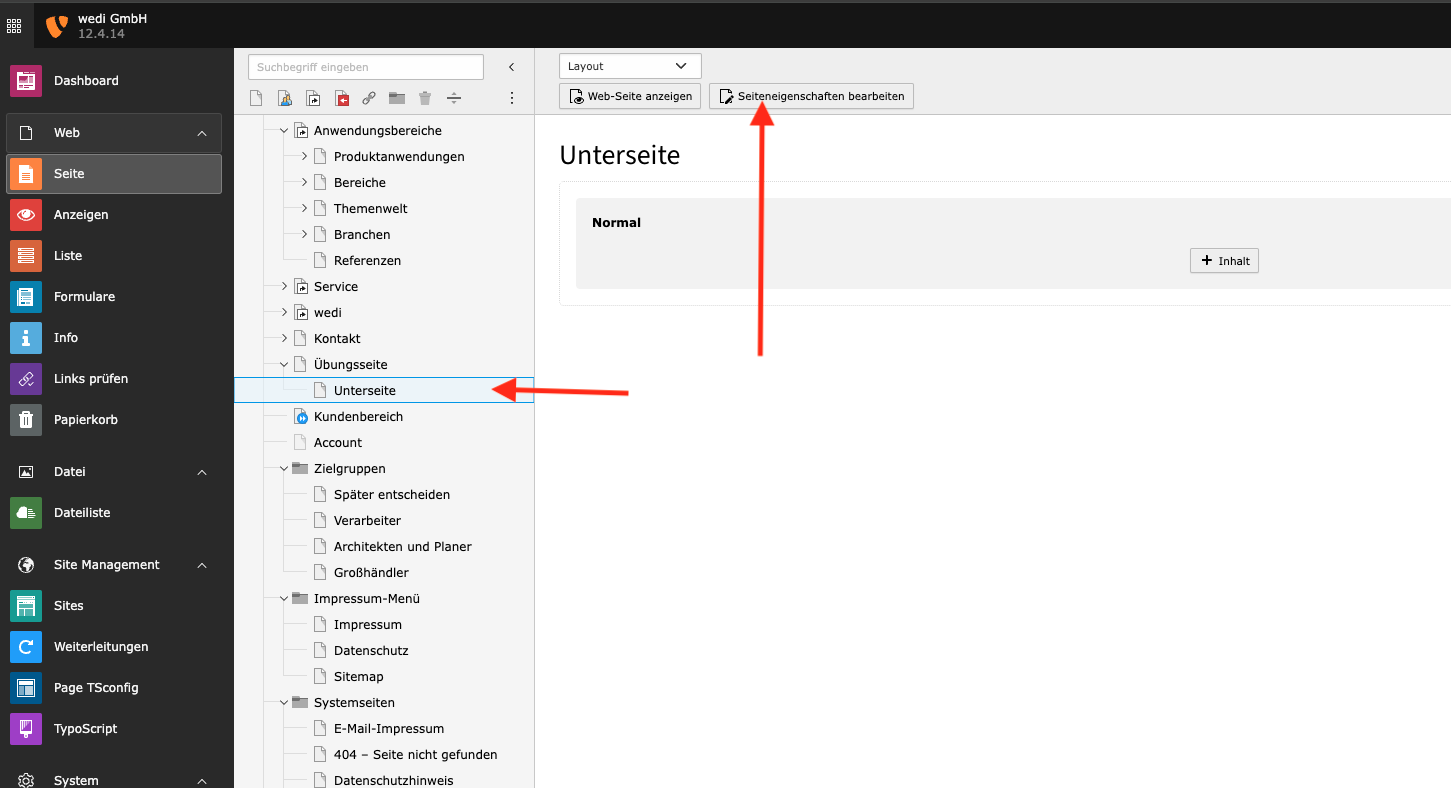
1 Open page properties
First, select the desired page for which you want to display an image in the main navigation. There, open the page properties for editing.
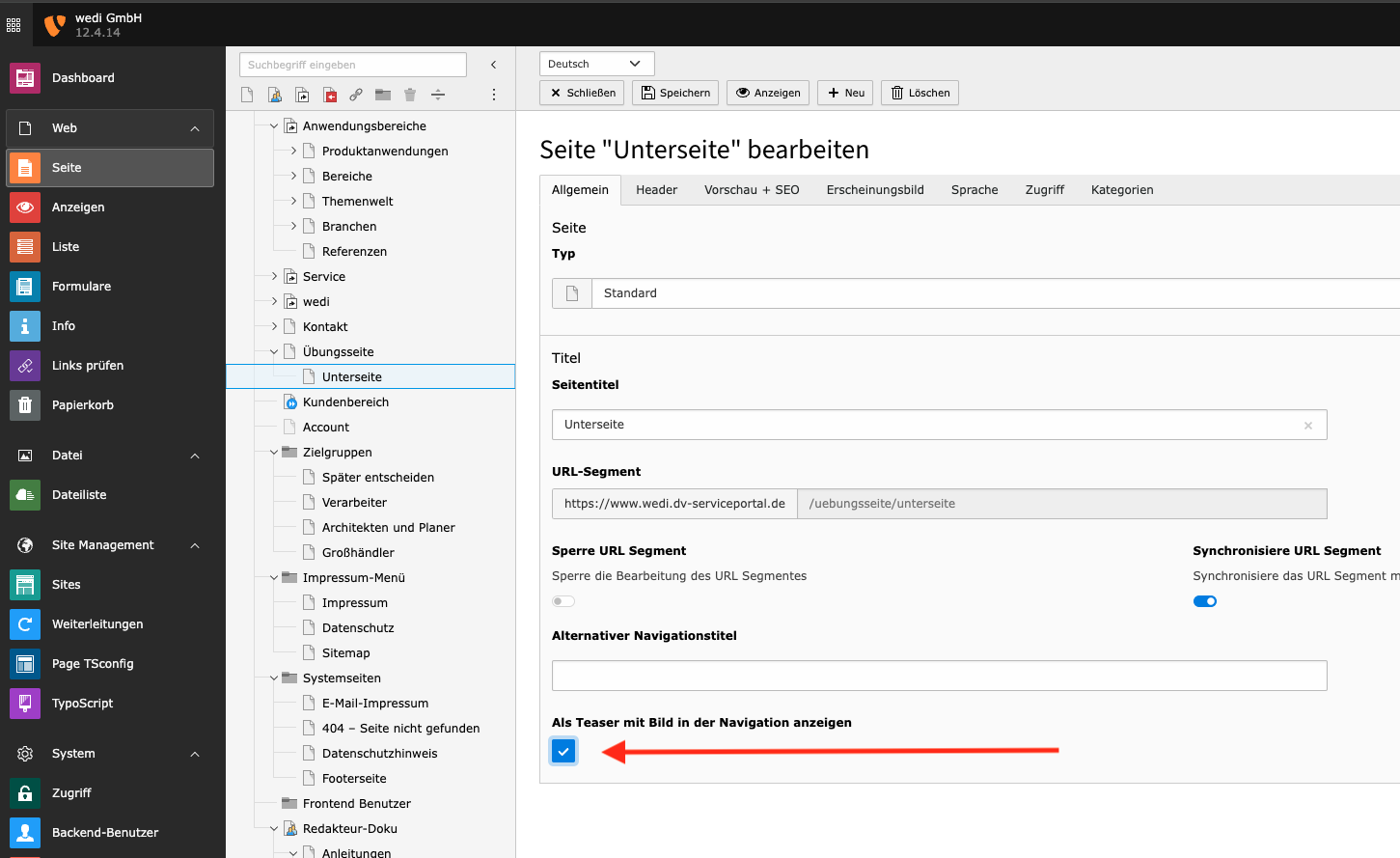
2 Set the checkbox
For each page that is to be displayed with an image in the navigation, this must be explicitly activated by setting a checkbox for this page.
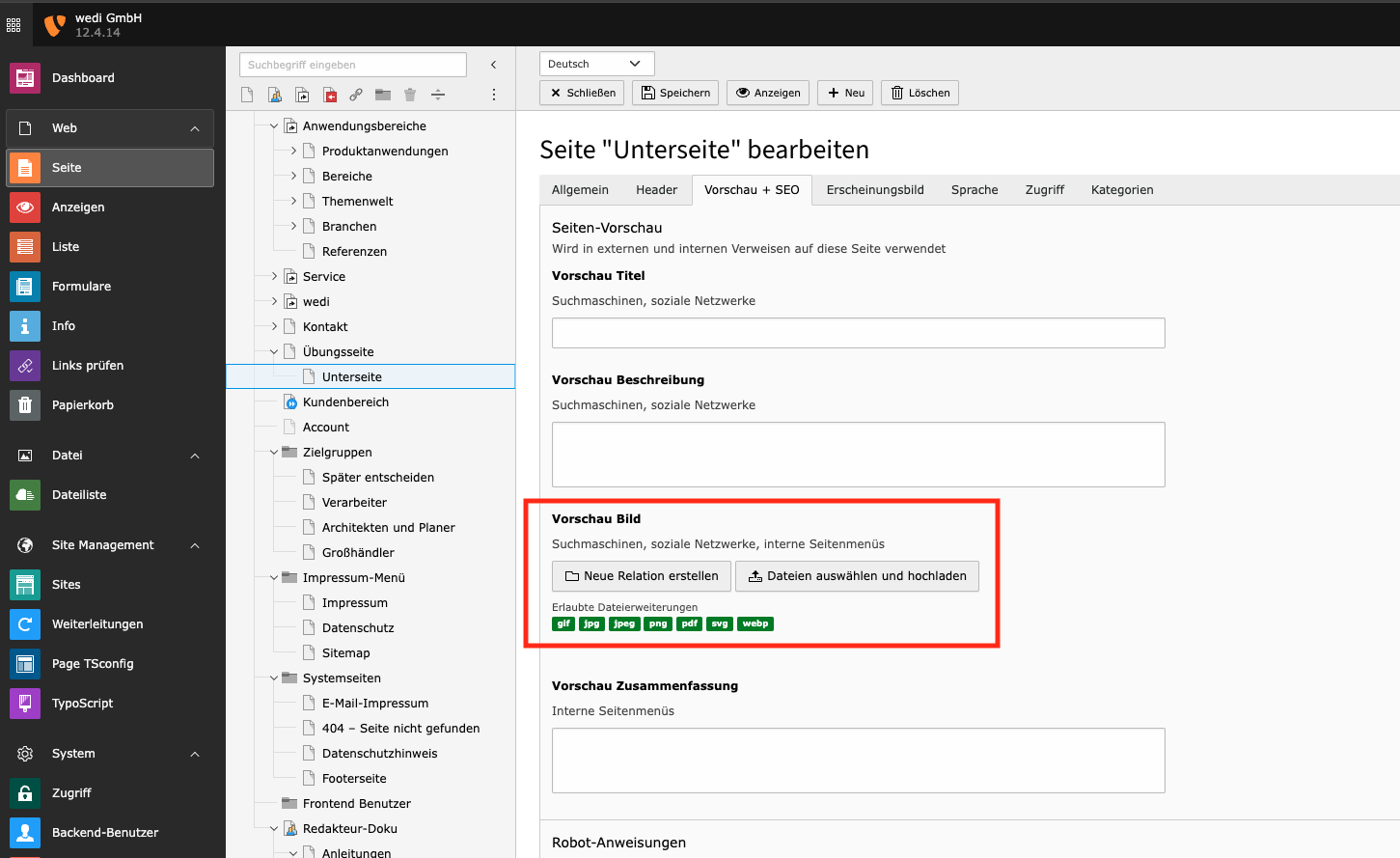
3 Embed the image
In the "Preview + SEO" tab, the corresponding image to be displayed is selected and added.
- "Create New Table" accesses a neatly sorted image in fileadmin or DAM (later)
- "Select and upload files" loads files into a kind of unsorted collection memory. If it has to go fast, okay, otherwise the worse choice.

